
🎨 Theming Your Puzzle with Custom Images
Swap tents and trees for any icons — create seasonal, fun, or branded puzzles in minutes.
🗂️ Required Module
- ✅ Puzzle Maker Pro – Tents and Trees
- ✅ Puzzle Maker Pro v2025.13.0.1 or later
🛠️ Preparation
Before you start, you’ll need:
- Two PNG or JPG icons: one for tree, one for tent. Transparent PNG works best.
(Any theme: bone/dog, house/mailbox, UFO/cow, etc.) - A saved preset (optional) to reuse your custom set later
🔢 Step-by-Step Instructions
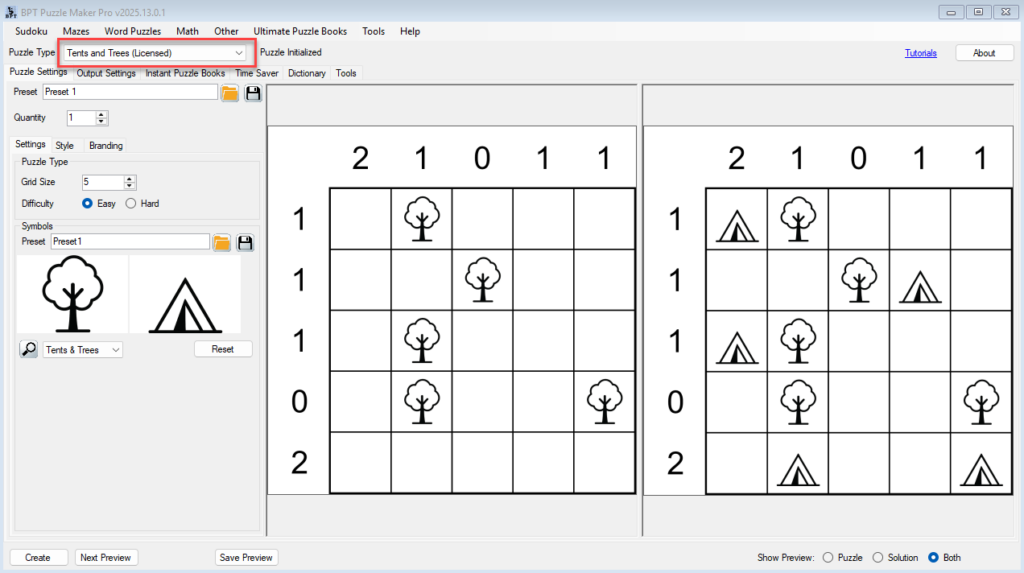
1. Open the Tents and Trees Module
- Launch Puzzle Maker Pro
- Select:
Puzzle Type → Tents and Trees (Licensed)
2. Go to the Puzzle Settings Tab
- In the left panel, under Symbols, click the folder icon next to the image slot
- Select your custom image for:
- The Tree symbol (1)
- The Tent symbol (2)
- Recommended format: PNG (transparent)
- Click Next Preview to see your themed puzzle update live

3. Save Your Theme as a Preset (Optional)
- Click the Save icon next to the Preset dropdown
- Name your preset (e.g. “Halloween: Pumpkin + Ghost”)
- You can now quickly reuse this combo across puzzles or batch creation
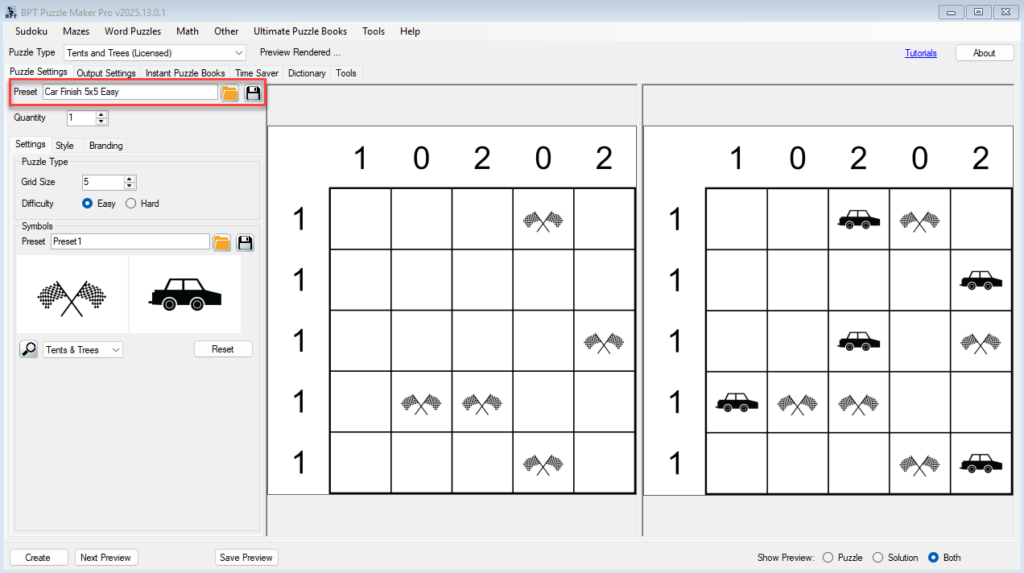
4. Preview the Puzzle
- Set grid size and difficulty if needed
- Use Next Preview to generate a new puzzle with your themed icons
- Toggle the Puzzle / Solution / Both setting to confirm all views are correct
5. Export Your Themed Puzzle
- Go to Output Settings
- Choose PNG, PDF, or SVG depending on your needs
- Click Create to generate your final puzzle with themed icons
🎉 Outcome
You now have a custom-themed Tents and Trees puzzle using your own icons. This is perfect for creating:
- Seasonal puzzle books (e.g. Winter, Easter)
- Gift or party-themed puzzles
- Branded logic games for clients, schools, or events