
🧱 Getting Started with Skyscraper Puzzles
Create your first numeric logic puzzle with clean layout and professional output.
🗂️ Required Module
- ✅ Puzzle Maker Pro – Skyscraper
- ✅ Puzzle Maker Pro v2025.13.0.1 or later
🛠️ Preparation
Before you begin:
- Install the Skyscraper module (Core or Creator Edition)
- Decide your puzzle’s grid size and difficulty level
- Set an output folder for your generated files
🔢 Step-by-Step Instructions
1. Select the Skyscraper Module
- Open Puzzle Maker Pro
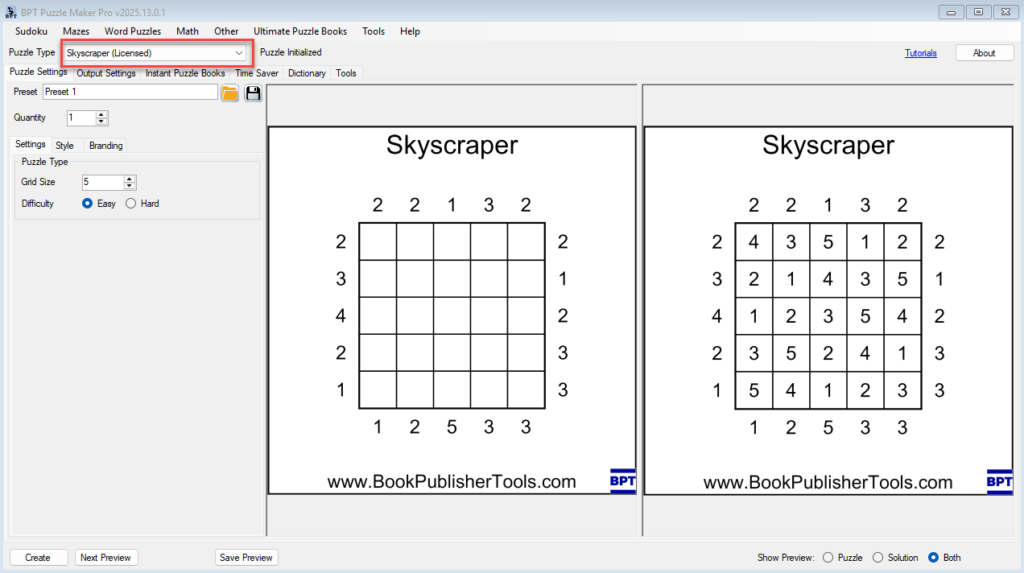
- From the top-left dropdown, choose:
Puzzle Type → Skyscraper (Licensed)
2. Configure Puzzle Settings
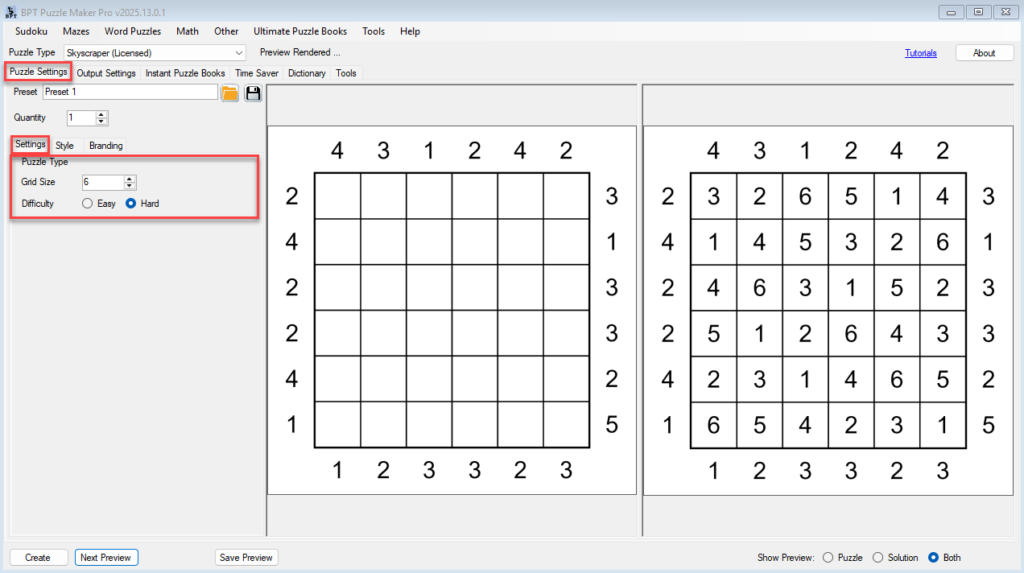
Go to the Puzzle Settings tab:
- Choose a Grid Size (5 to 10)
- Select Difficulty: Easy or Hard
- Use Next Preview to view a sample puzzle and solution
(Toggle Puzzle / Solution / Both at the bottom right)
3. Adjust Output Settings
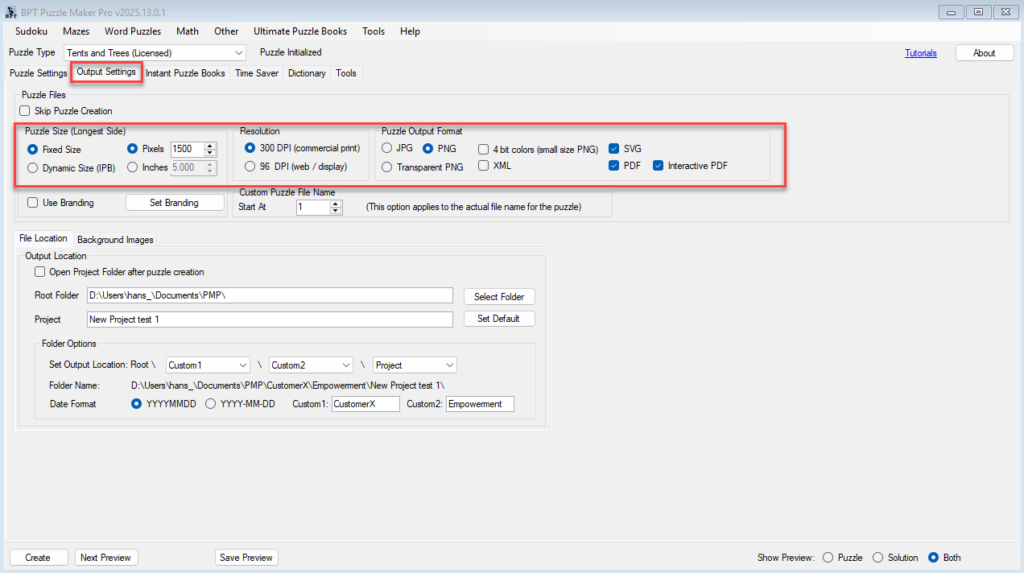
Switch to the Output Settings tab:
- Choose Output Format:
✅ PNG, ✅ JPG, ✅ PDF, ✅ SVG, ✅ Interactive PDF (Creator Edition only) - Set resolution:
- 300 DPI for print
- 96 DPI for screen use
- Choose Fixed Size or Dynamic Size (IPB) depending on your workflow
4. Set File Output Location
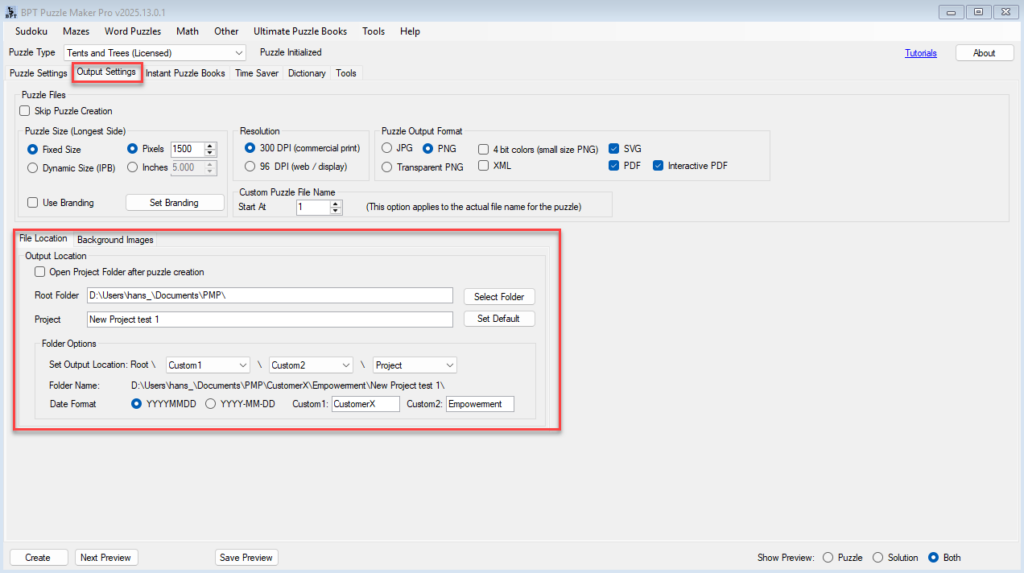
Still on Output Settings:
- Set your Root Folder and Project Name
- Use optional custom fields (
Custom1,Custom2) to organize output - Enable “Open project folder after creation” if desired
5. Generate Your Puzzle
- Use Next Preview to double-check the layout
- When satisfied, click Create to generate your puzzle and solution
Your files will be saved in the project folder you selected
🎉 Outcome
You’ve created a clean, professional Skyscraper puzzle, complete with numeric clues and a solution grid. It’s now ready for use in:
- Puzzle books
- Classroom materials
- Digital downloads
- Interactive PDF books